 Skip to content
How To Setup the best STB Emulator On A Windows PC in 2025 ?
Setting up the STB Emulator on a Windows PC in 2025 can seem a bit tricky at first. But really, it’s a straightforward process that opens up a world of streaming possibilities. This guide aims to break down the steps, making it easy for anyone to get their favorite IPTV content running smoothly on their computer. We’ll cover everything from downloading the application to fine-tuning the settings for the best possible viewing experience, especially if you’re looking for services like gold IPTV.
Key Takeaways
- STBEmu is a useful tool for Windows users wanting to stream IPTV content.
- The installation and setup process for STBEmu on Windows is generally simple.
- Adjusting the application’s settings can improve the overall streaming quality.
- Managing your channel lists within STBEmu makes finding content easier.
- Having a good IPTV subscription, such as one from gold IPTV, is necessary to use STBEmu.
1. Download and Install STB Emulator on a Windows PC
To get started with STB Emulator on your Windows computer, the first thing you’ll need to do is download and install the application. Since STB Emulator is designed for Android devices, you’ll need an Android emulator to run it on your PC. A popular choice for this is BlueStacks.
Here’s a breakdown of the process:
- Download and install an Android emulator like BlueStacks from its official website. Follow the on-screen instructions to complete the installation.
- Once the emulator is set up, open it. You’ll see an interface that looks much like an Android device.
- Navigate to the Google Play Store within the emulator.
- In the Play Store search bar, type in “STB Emulator”.
- Locate the STB Emulator app (often labeled STBEmu) and select it.
- Click the “Download” or “Install” button to get the app onto your emulator.
- After the download finishes, you can open the STB Emulator directly from the emulator’s app drawer.
This initial setup ensures that the STB Emulator application has a proper environment to run on your Windows machine, preparing it for the subsequent configuration steps.
With the application installed, you’re ready to move on to configuring it for your specific IPTV service.
2. STBEmu Setup Guide
Getting started with STBEmu on your Windows PC is straightforward. This section walks you through the initial setup process, making sure you can begin streaming your favorite content without much fuss. We’ll cover the essential steps to get the application running smoothly.
Downloading the STBEmu Application
First things first, you need to get the STBEmu application. It’s important to download it from a reliable source to avoid any security risks. Look for the official website or a well-known software repository. Once you find a trusted download link, click on it. The application file will then start downloading to your computer. You can usually find the downloaded file in your browser’s default download folder.
Installing STBEmu on Windows
After the download is complete, the next step is installation. Locate the setup file you just downloaded and double-click it to start the process. A setup wizard will appear, guiding you through the installation. Just follow the on-screen instructions. You might need to agree to terms and conditions or choose an installation location. Once finished, you can launch STBEmu.
STBEmu Configuration for Windows
Once STBEmu is installed, you’ll need to configure it to connect to your IPTV service. This usually involves entering a portal URL or a specific server address provided by your IPTV provider. You’ll find this option within the application’s settings menu.
Here’s a general idea of what you might need to do:
- Locate the ‘Settings’ or ‘Configuration’ menu. This is typically accessed from the main screen or a gear icon.
- Find the ‘Portal Settings’ or ‘Network Settings’ section.
- Enter the provided URL. This is the address that links STBEmu to your IPTV streams.
- Save your changes.
Proper configuration is key to accessing your IPTV channels. Double-check the URL for any typos before saving.
Managing Network Preferences
To ensure smooth playback, it’s a good idea to check your network settings within STBEmu. You can often adjust things like buffer size or connection preferences. Making small tweaks here can help reduce buffering and improve the overall streaming quality. For the best experience, a stable internet connection is always recommended.
3. STBEmu Configuration for Windows
Setting Up Your IPTV Service
Once STBEmu is installed, the next step involves connecting it to your IPTV provider. This is typically done by entering the portal URL or M3U playlist link provided by your service.
- Open the STBEmu application.
- Navigate to the application’s settings menu. This is usually accessed by pressing the ‘Menu’ button on your keyboard or clicking a settings icon within the app.
- Locate the ‘Profile Settings’ or a similar section.
- Find the field for ‘Portal URL’ or ‘M3U URL’ and carefully input the address given by your IPTV provider.
- Save the changes. You might need to restart the application for the new settings to take effect.
Customizing the User Interface
STBEmu allows for some customization to make your viewing experience more personal. You can adjust how channels are displayed and organized.
- Channel List Organization: Within the settings, you can often sort your channels. Options might include sorting by name, by provider category, or by your own custom order.
- Appearance Settings: Some versions may offer options to change the look of the interface, such as theme colors or font sizes. Experiment with these to find what looks best on your screen.
It’s important to get these initial configurations right. A correctly entered portal URL is the gateway to your content, and a well-organized channel list makes finding what you want to watch much simpler. Don’t rush this part; double-checking the URL is always a good idea.
4. What is STBEmu?
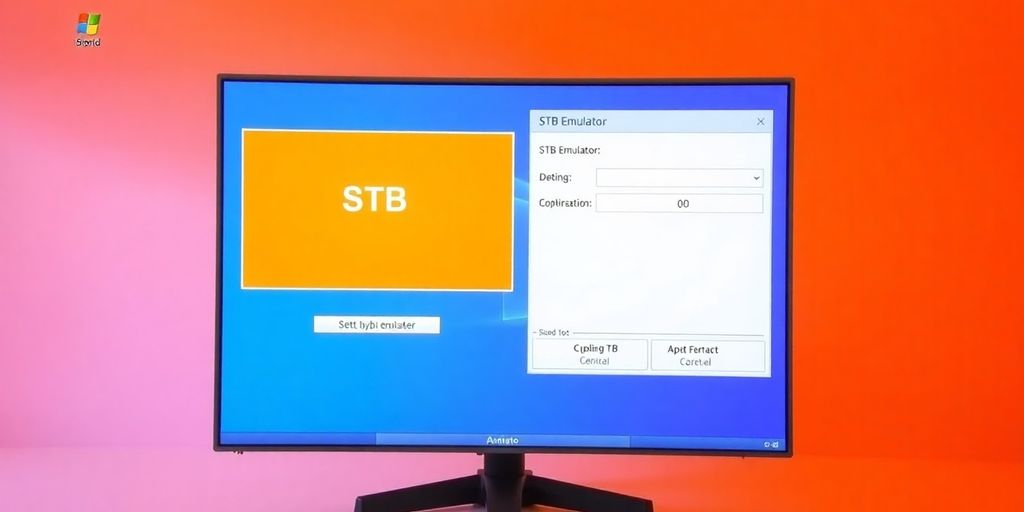
STBEmu is a software application designed to mimic the functionality of a physical set-top box (STB) on your Windows PC. It’s primarily used for accessing and viewing IPTV (Internet Protocol Television) services. Think of it as a virtual remote control and player for your online television subscriptions, offering a familiar interface for users accustomed to traditional cable or satellite boxes.
Key Features and Functionality
STBEmu provides a user-friendly experience for managing and watching IPTV content. Its design aims to replicate the ease of use found in dedicated hardware set-top boxes, making it accessible even for those who aren’t highly technical.
- IPTV Service Access: The core purpose of STBEmu is to connect to IPTV providers. Users input specific portal URLs or network details provided by their IPTV service to access a list of available channels and content.
- Set-Top Box Interface: It features an interface that closely resembles that of a physical STB, including channel lists, program guides, and playback controls.
- Customization: Users can often customize various aspects of the application, such as the appearance of the interface, channel order, and other viewing preferences to suit their needs.
- Protocol Support: The application supports several streaming protocols commonly used by IPTV services, allowing it to work with a wide range of providers.
Benefits of Using STBEmu
Choosing STBEmu for your streaming needs can offer several advantages:
- Accessibility: It allows users to access IPTV services on their computers, which might be more convenient than using a dedicated device, especially if they prefer a larger screen or keyboard/mouse control.
- Cost-Effectiveness: For many, using STBEmu with an IPTV subscription can be a more affordable alternative to traditional cable or satellite television packages.
- Flexibility: It provides the flexibility to switch between different IPTV services by simply changing the configuration settings within the application.
While STBEmu is a powerful tool for IPTV viewing, it’s important to remember that the application itself does not provide any content. Users must have a valid subscription with an IPTV service provider to use STBEmu effectively. Always ensure you are downloading the application from reputable sources to maintain security.
5. Introduction to STBEmu on Windows Laptop
Introduction to STBEmu on Windows Laptop
STBEmu offers a way to watch IPTV content directly on your Windows laptop, bypassing the need for a physical set-top box. This application brings a familiar TV-like experience to your computer, making it a convenient option for users who prefer streaming on a larger screen than a phone or tablet. It’s a popular choice for its adaptability and the variety of streaming possibilities it opens up.
Downloading the STBEmu Application
To begin, it’s important to obtain the STBEmu application from a reliable source. Stick to official websites or well-known software repositories to avoid potential security risks. Once you locate a trusted download link, click on it to start the file transfer. Typically, the downloaded file will be saved in your web browser’s default download folder.
Installing STBEmu on Windows
After the download is complete, proceed with the installation process. Find the setup file you just downloaded and double-click it to launch the installer. Follow the on-screen prompts to guide you through the installation. You might be asked to grant certain permissions or make configuration choices during this stage. When you open STBEmu for the first time, you may encounter initial setup options designed to optimize your viewing experience.
6. Downloading the STBEmu Application
To begin using STBEmu on your Windows PC, the first step involves obtaining the application itself. This process typically starts with locating a reliable source for the software. While the application is designed for specific set-top boxes, it can be run on a PC using an emulator. Finding the correct download is important to avoid issues later on.
Where to Find the STBEmu Application
Users will need to find a download source for the STBEmu application. This might involve searching on reputable software download sites or potentially the developer’s official channels if available. It’s always a good idea to stick to well-known platforms to minimize the risk of downloading malware or incorrect versions.
Understanding the Download Process
Once a suitable download source is identified, the user can proceed with downloading the application file. This file will likely be an executable or an archive that contains the necessary program files. The size of the download can vary, so having a stable internet connection is recommended.
Verifying the Download
After the download is complete, it is advisable to verify the integrity of the downloaded file. Some websites provide checksums (like MD5 or SHA-256) that can be used to confirm that the file was not corrupted during the download. This step helps ensure that the application will install and run correctly.
7. Installing STBEmu on Windows
After you have successfully downloaded the STBEmu application file, the next step involves the actual installation process on your Windows computer. This is generally a straightforward procedure, but it’s good to follow along carefully.
Downloading the STBEmu Application
Before installation can begin, you need to obtain the application’s installer. It is strongly advised to download the STBEmu application only from its official website or a reputable software repository. This helps to avoid potential security risks associated with unofficial sources. Once you locate the correct download link, click on it to start the download. The installer file will typically be saved to your computer’s default download folder.
Installing STBEmu on Windows
Once the download is complete, find the installer file you just downloaded. It usually has a .exe extension. Double-click this file to launch the installation wizard. You will then be guided through a series of on-screen prompts. It is important to read each step carefully and accept the terms and conditions if you agree with them. You may also be asked to choose an installation directory; the default location is usually fine for most users. After completing the wizard, the application will be installed on your system.
STBEmu Configuration for Windows
With STBEmu installed, the next phase is its configuration. This involves setting up the application to connect to your IPTV service. You will typically need to input a portal URL or a similar address provided by your IPTV provider. This is usually done within the application’s settings menu. Proper configuration is key to accessing your content smoothly.
8. STBEmu Settings
Once the application is installed, the next step involves adjusting the STBEmu settings to tailor the experience to your preferences. These adjustments can significantly impact how smoothly content plays and how easy it is to find what you want to watch. It’s all about making the app work best for your specific setup and viewing habits.
Adjusting Video Quality Settings
Getting the video quality right is important for enjoyable streaming. You can change the resolution to match your internet speed and screen. Higher resolutions look sharper, but they need a faster internet connection. If you experience buffering, try lowering the resolution.
- Access the main settings menu within STBEmu.
- Locate the video or display section.
- Select a resolution (e.g., 720p, 1080p) that balances quality with your internet capabilities.
Additionally, exploring different video formats might help. Some formats are more efficient with bandwidth, providing good quality without demanding too much from your connection.
Managing Network Preferences
Network settings play a big role in streaming performance. STBEmu offers options to manage how it connects and buffers content. Fine-tuning these can reduce interruptions and improve playback.
- Buffer settings: Adjusting the buffer size can help prevent stuttering during playback, especially on less stable connections.
- Connection timeouts: You might be able to set how long the app waits for a connection before giving up, which can be useful for some network configurations.
- DNS settings: In some cases, changing the DNS server can improve connection speeds and reliability.
Proper network configuration is key to a smooth streaming experience. It ensures that the app can fetch content efficiently without constant interruptions. Pay attention to how these settings affect your playback.
Customizing the Interface
Beyond performance, you can also change how STBEmu looks and feels. This includes organizing your channel lists. You can sort channels by category, by how often you watch them, or create a favorites list for quick access. Making these changes helps you find your preferred content much faster.
9. Managing Network Preferences
Managing Network Preferences
Getting your streaming to work well often comes down to how you handle your network settings. Little adjustments to things like buffering and bandwidth can make a big difference in how smoothly your shows play. It’s not too complicated, really.
Here are a few things to consider:
- Adjusting the buffer size: This setting helps control how much video data is downloaded ahead of time. Tweaking it can cut down on those annoying interruptions.
- Using a wired connection: If you can, plugging your computer directly into your router with an Ethernet cable usually gives you a more stable connection than Wi-Fi. Less chance of dropouts.
- Closing background apps: Make sure other programs on your PC aren’t hogging your internet connection. Apps that download updates or sync files can use a lot of bandwidth without you even realizing it.
Taking a moment to optimize these network settings can really help reduce lag and make your streaming experience much better. You want to watch your shows, not wait for them to load.
Sometimes, the simplest fixes are the most effective. Don’t overlook the basics when trying to get your streaming just right. A stable connection is key.
Key Takeaways
- STBEmu is a good way to watch IPTV on Windows computers.
- Setting it up isn’t hard, even if you’re new to this.
- Changing settings can really improve how well it works.
- Being able to organize your channels makes it easier to use.
- If you set it up right, STBEmu should stream without many problems.
10. IPTV Subscription
To get the most out of your STB Emulator setup on your Windows PC, you will need an active IPTV subscription. This subscription provides the actual content – the channels and video-on-demand services – that you will stream through the emulator. Without a valid subscription, STB Emulator is just a shell; it needs the service provider’s details to function.
IPTV Subscription Details
When you sign up for an IPTV service, you will typically receive a set of credentials. These are the keys to unlocking your content within STB Emulator. They usually include:
- Portal URL: This is the main address that STB Emulator connects to. It points to the server hosting your IPTV provider’s content.
- Username: Your unique identifier for the service.
- Password: Your secret code to access the service.
It’s important to keep these details secure, as they grant access to your paid subscription.
Obtaining an IPTV Subscription
There are many IPTV service providers available. When choosing one, consider factors like channel selection, streaming quality, pricing, and customer support. Always opt for reputable providers to avoid issues with service reliability or content availability.
Entering Subscription Information
Once you have your IPTV subscription details, you will enter them into the STB Emulator’s settings. This is usually done in the ‘Profile’ or ‘Settings’ section, where you’ll find fields for the Portal URL, username, and password. Make sure to enter them exactly as provided, paying attention to capitalization and any special characters.
Troubleshooting Subscription Issues
If you encounter problems after entering your subscription details, such as channels not loading or error messages, double-check the information you entered. Ensure there are no typos in the Portal URL, username, or password. Sometimes, restarting the STB Emulator application or your PC can also resolve temporary connection glitches. If problems persist, contacting your IPTV provider for support is the next best step.
Wrapping Up Your STB Emulator Setup
So, you’ve successfully set up STB Emulator on your Windows PC. It’s a pretty neat way to get your IPTV streams working without needing extra hardware. Just remember to have your IPTV subscription details handy for the configuration part. The app itself is quite user-friendly once you get past the initial setup. It really does open up a good way to watch your favorite channels right on your computer. If you followed along, you should be all set for a better viewing experience. Enjoy your streaming!
Frequently Asked Questions
What is required before setting up STB Emulator on Windows?
To use STB Emulator on a Windows PC, one must first acquire an IPTV subscription. Without this, the application cannot access any streaming content. It is recommended to obtain a subscription from a reliable provider for the best viewing experience.
What exactly is STB Emulator?
STB Emulator is a software application that mimics the functionality of a traditional set-top box on Windows computers. It allows users to access and stream IPTV services through a familiar, user-friendly interface, making it convenient for watching television content on a PC.
How does one set up STB Emulator on a Windows PC?
Setting up STB Emulator on a Windows PC involves downloading and installing the application, often through an Android emulator like BlueStacks since STB Emulator is primarily designed for Android devices. After installation, users need to configure the app by entering their IPTV service details, such as the portal URL.
Where can the STB Emulator application be downloaded?
Users can download the STB Emulator application from its official website or other trusted sources. It is important to avoid unofficial websites to prevent downloading malware or corrupted files. Once downloaded, the installation process is typically straightforward, requiring users to follow on-screen prompts.
What are the key configuration steps for STB Emulator on Windows?
Configuring STB Emulator for Windows involves accessing the application’s settings menu. Here, users can input their IPTV subscription details, including the portal URL and any necessary login credentials. Adjusting display and network preferences can also enhance the streaming performance.
How are network preferences managed in STB Emulator?
Managing network preferences within STB Emulator is important for smooth streaming. This may involve ensuring the PC has a stable internet connection and potentially adjusting settings related to data usage or connection protocols within the emulator’s options to optimize performance.