 Skip to content
Can I use Gold IPTV on Smart TVs?
Smart TV owners who want to stream Gold IPTV on their devices often wonder about compatibility and setup options. This guide helps anyone looking to install and optimize Gold IPTV on Smart TV platforms, from tech beginners to streaming enthusiasts who want the best viewing experience.
The article covers how Gold IPTV works with different Smart TV brands and models, walks through the installation process for various TV types, and shows readers how to fix common streaming issues. Viewers will learn which Smart TVs support Gold IPTV directly through apps and which ones need external streaming devices to work properly.
Understanding Gold IPTV Compatibility with Smart TV Platforms
Compatible Smart TV Operating Systems and Brands
Smart TV owners have varying degrees of Gold IPTV compatibility depending on their television’s operating system. Most modern Smart TVs can run Gold IPTV services, though the installation method differs significantly across platforms.
Android TV offers the most straightforward Gold IPTV Smart TV experience. Sony, Philips, Sharp, and TCL Android TV models support IPTV applications through the Google Play Store or sideloading APK files. Users can install dedicated IPTV players like IPTV Smarters Pro, TiviMate, or Perfect Player directly onto their Android-powered televisions.
Samsung Tizen OS presents more challenges for Gold IPTV installation. Since Samsung doesn’t allow third-party IPTV apps in their official store, users must rely on alternative methods such as web browsers or external streaming devices. Some Samsung models support Smart IPTV app installation through developer mode activation.
LG webOS televisions require similar workarounds. While LG’s Content Store doesn’t offer comprehensive IPTV solutions, users can access Gold IPTV through the built-in web browser or install compatible apps like SS IPTV when available in specific regions.
Amazon Fire TV Edition smart televisions, manufactured by brands like Insignia and Toshiba, provide excellent IPTV Smart TV compatibility. The Fire TV platform supports numerous IPTV applications available through Amazon’s Appstore or through sideloading.
Roku TV models from TCL, Hisense, and Sharp offer limited native IPTV options. Users typically need to add private channels or use screen mirroring from mobile devices to access Gold IPTV content.
Older Smart TV models running legacy operating systems may struggle with modern IPTV applications, requiring external devices like Android TV boxes or streaming sticks for optimal Gold IPTV performance.
Hardware Requirements for Smooth Gold IPTV Performance
Smart TV hardware specifications directly impact Gold IPTV streaming quality and user experience. The television’s processor, RAM, and storage capacity determine how effectively it can handle IPTV streams and applications.
Processor requirements play a crucial role in IPTV performance. Smart TVs with quad-core processors at 1.5GHz or higher provide smooth playback for most Gold IPTV content. Dual-core processors may handle standard definition streams adequately but struggle with 4K or multiple concurrent streams.
RAM specifications significantly affect application responsiveness and buffer management. Smart TVs with 2GB RAM or more deliver optimal Gold IPTV Smart TV performance, allowing smooth channel switching and reducing loading times. Television models with 1GB RAM may experience occasional stuttering or app crashes during intensive streaming sessions.
Storage capacity becomes important when installing IPTV applications and storing temporary cache files. Smart TVs should have at least 8GB of available storage for IPTV app installation and operation. Models with 16GB or more provide better performance by allowing larger cache sizes and multiple application installations.
Graphics processing capabilities determine video decoding efficiency. Modern Smart TVs with dedicated video processing units handle various codec formats more effectively than older models relying solely on CPU processing. This hardware acceleration ensures smooth playback of different video formats commonly used in IPTV streaming.
Television age affects overall performance significantly. Smart TVs manufactured within the last three years typically offer better Gold IPTV compatibility compared to older models that may lack modern codec support or sufficient processing power.
Internet Speed and Connection Standards Needed
Internet connection quality forms the foundation of successful Gold IPTV Smart TV streaming. Both download speed and connection stability directly influence viewing experience quality and reliability.
Minimum speed requirements vary based on streaming quality preferences. Standard definition Gold IPTV streams require at least 3-5 Mbps download speed per concurrent stream. High definition content needs 5-8 Mbps, while 4K streaming demands 15-25 Mbps or higher. Households with multiple viewers should multiply these requirements accordingly.
Upload speed considerations become relevant for interactive IPTV features or two-way communication services. While most Gold IPTV services primarily use download bandwidth, having 1-2 Mbps upload speed ensures proper service authentication and occasional data transmission.
Connection stability proves more critical than raw speed numbers. IPTV services perform better on consistent 10 Mbps connections than fluctuating 25 Mbps connections with frequent dropouts. Smart TV users should prioritize stable internet connections over peak speed specifications.
Wired versus wireless connections present different performance characteristics. Ethernet connections to Smart TVs provide more consistent Gold IPTV streaming compared to Wi-Fi connections. When wireless connections are necessary, 5GHz Wi-Fi bands typically offer better performance than crowded 2.4GHz frequencies.
Router placement and quality significantly impact IPTV Smart TV performance. Smart TVs should maintain strong Wi-Fi signal strength, ideally above -60 dBm. Users experiencing poor wireless performance should consider Wi-Fi extenders, mesh systems, or powerline adapters to improve connectivity.
Network congestion during peak hours can affect Gold IPTV performance regardless of subscribed internet speed. Users may need to adjust streaming quality settings or schedule viewing during off-peak hours for optimal experience.
Step-by-Step Installation Methods for Different Smart TV Types
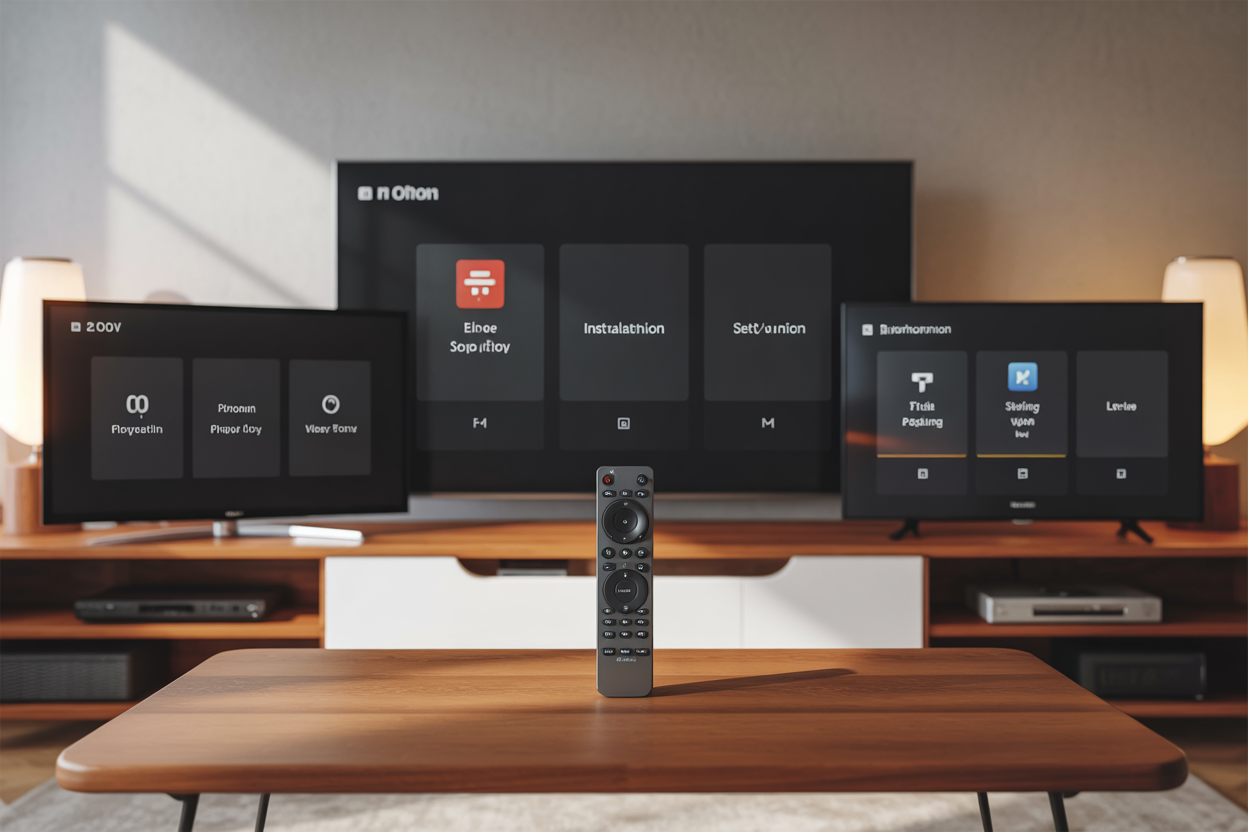
Installing Gold IPTV on Android TV Systems
Android TV users have the most straightforward path to Gold IPTV installation. Most Android TV systems support direct APK installations, making the setup process relatively simple. Users can either download the official Gold IPTV app from the Google Play Store or sideload the APK file directly onto their device.
The sideloading method requires enabling “Unknown Sources” in the Android TV settings. Users navigate to Settings > Device Preferences > Security & Restrictions and toggle on “Unknown sources” for the desired installation method. Once enabled, they can use a file manager app or USB drive to install the Gold IPTV APK file.
Popular Android TV models that support Gold IPTV installation include:
- Sony Bravia Android TV series
- Philips Android TV models
- TCL Android TV devices
- Mi TV Android systems
- Nvidia Shield TV
For optimal Gold IPTV Smart TV performance on Android systems, users should ensure their device has adequate RAM and storage space. Android TV devices with at least 2GB RAM typically provide smoother streaming experiences with fewer buffering issues.
Setting Up Gold IPTV on Samsung Tizen TVs
Samsung Tizen smart TVs present unique challenges for IPTV Smart TV app installation since they don’t natively support APK files. However, several workarounds enable users to access Gold IPTV services on these devices.
The Smart IPTV app serves as an excellent intermediary solution for Samsung TVs. Users can download Smart IPTV from the Samsung App Store and configure it to work with their Gold IPTV subscription. This process involves:
- Installing Smart IPTV from Samsung’s official app store
- Obtaining the M3U playlist URL from Gold IPTV
- Entering the playlist information into Smart IPTV settings
- Configuring EPG (Electronic Program Guide) data if available
Another approach involves using the built-in web browser on Samsung Tizen TVs to access Gold IPTV’s web player interface. While this method works, it may not provide the same user experience as dedicated apps.
Samsung Tizen models from 2016 onwards generally support these installation methods, though older models may have limited compatibility with certain features.
Configuring Gold IPTV on LG WebOS Devices
LG WebOS smart TVs require similar workaround strategies since they don’t support direct APK installation. The most effective approach involves using third-party IPTV applications available in the LG Content Store.
SS IPTV stands out as the preferred application for Gold IPTV streaming device setup on LG WebOS systems. Users can follow these steps:
- Download SS IPTV from LG Content Store
- Launch the application and navigate to settings
- Add the Gold IPTV M3U playlist URL
- Configure audio and video settings for optimal playback
- Set up favorites and channel organization
LG WebOS devices also support casting from mobile devices running Gold IPTV apps. Users can install the Gold IPTV mobile app on their smartphone or tablet and cast content directly to their LG smart TV using built-in screen mirroring features.
WebOS 3.0 and newer versions provide better compatibility with IPTV applications, while older WebOS versions may experience performance limitations or feature restrictions.
Alternative Installation Options for Unsupported TV Models
Smart TV models that don’t support direct Gold IPTV installation can still access the service through external streaming devices. These solutions often provide better performance and more features than built-in smart TV applications.
Streaming Device Options:
| Device Type | Gold IPTV Compatibility | Setup Difficulty |
|---|---|---|
| Amazon Fire TV Stick | Excellent | Easy |
| Roku Devices | Good (via casting) | Moderate |
| Apple TV | Good (via AirPlay) | Moderate |
| Chromecast | Excellent | Easy |
| Android TV Boxes | Excellent | Easy |
Amazon Fire TV Stick offers one of the best Smart TV IPTV setup experiences for unsupported TV models. Users can sideload the Gold IPTV APK directly onto Fire TV devices using the Downloader app or transfer files via USB.
Android TV boxes provide maximum flexibility and performance for Gold IPTV streaming. These devices run full Android operating systems, supporting direct APK installation and offering superior hardware specifications compared to built-in smart TV platforms.
For users with older smart TVs or models with limited app support, connecting a dedicated streaming device often delivers better picture quality, faster loading times, and access to regular app updates that improve Gold IPTV performance optimization.
HDMI dongles and mini PCs represent additional alternatives for users seeking comprehensive IPTV Smart TV guide solutions. These devices transform any TV with HDMI input into a capable Gold IPTV streaming platform.
Optimizing Gold IPTV Performance on Your Smart TV
Network Configuration Tips for Buffer-Free Streaming
Users experience the most frustration with IPTV Smart TV streaming when their network isn’t properly configured for consistent data flow. The foundation of smooth Gold IPTV performance starts with internet speed requirements that exceed the minimum thresholds most people assume they need.
For standard definition content, users need at least 5 Mbps download speed, while HD content requires 10-15 Mbps per stream. Those planning to watch 4K content should secure 25 Mbps or higher. Smart TV owners often overlook that multiple devices sharing the same network can dramatically impact Gold IPTV streaming quality.
Ethernet connections provide the most stable foundation for Gold IPTV Smart TV performance. While Wi-Fi offers convenience, wired connections eliminate interference issues and provide consistent bandwidth delivery. Users who must rely on wireless connections should position their Smart TV within optimal range of the router and avoid physical obstacles that can weaken signal strength.
Quality of Service (QoS) settings on routers can prioritize Gold IPTV traffic over other network activities. Smart TV users benefit from configuring their router to allocate specific bandwidth to streaming applications, preventing other household internet usage from interrupting their viewing experience. Modern routers often include gaming or streaming modes that automatically optimize these settings.
DNS configuration plays a significant role in Gold IPTV Smart TV performance optimization. Users can switch from their ISP’s default DNS servers to faster alternatives like Google DNS (8.8.8.8, 8.8.4.4) or Cloudflare DNS (1.1.1.1, 1.0.0.1). This simple change often reduces loading times and improves stream stability.
Video Quality Settings and Resolution Adjustments
Gold IPTV applications typically offer multiple quality options that users can adjust based on their internet capacity and display preferences. Smart TV owners should start with auto-quality settings, which dynamically adjust resolution based on available bandwidth and network conditions.
Manual quality selection gives users more control over their Gold IPTV streaming device experience. Those with limited bandwidth can force lower resolutions to prevent buffering, while users with robust internet connections can lock in maximum quality settings for consistent high-definition viewing.
Frame rate considerations matter significantly for sports and action content. Users can often choose between 30fps and 60fps options, with higher frame rates requiring more bandwidth but providing smoother motion. Smart TV IPTV setup should account for the types of content viewers watch most frequently.
Bitrate settings directly impact both quality and bandwidth consumption. Higher bitrates produce better image quality but demand more stable internet connections. Users experiencing frequent buffering should gradually reduce bitrate settings until they find the optimal balance between quality and stability.
Hardware decoding capabilities vary between Smart TV models and can affect Gold IPTV performance optimization significantly. Newer Smart TVs with dedicated video processing chips handle high-resolution streams more efficiently than older models relying on software decoding.
Managing Storage and Cache for Better Performance
Smart TV storage management directly impacts Gold IPTV app functionality and streaming performance. Most Smart TVs have limited internal storage, and users need to regularly clear cached data to maintain optimal performance levels.
Application cache accumulates over time as users stream content through their Gold IPTV Smart TV setup. This cached data can improve loading times for frequently accessed content but may also consume valuable storage space and slow down the system when it becomes excessive.
Users should establish regular maintenance routines that include clearing the Gold IPTV app cache weekly or bi-weekly, depending on usage patterns. The process varies by Smart TV brand, but typically involves accessing the application manager through system settings and selecting cache clearing options.
Temporary files created during streaming sessions can pile up quickly, especially when users watch long-form content or frequently switch between channels. Smart TV owners can prevent performance degradation by restarting their Gold IPTV streaming device periodically to clear temporary system files.
External storage solutions offer expanded capacity for Smart TVs with limited internal storage. USB drives or SD cards can provide additional space for app data and temporary files, though users should ensure their Smart TV supports external storage before investing in these solutions.
System memory management affects how smoothly multiple applications run simultaneously on Smart TVs. Users should close unnecessary apps before launching Gold IPTV to free up RAM and processing power for optimal streaming performance. This practice becomes especially important for older Smart TV models with limited system resources.
Troubleshooting Common Gold IPTV Smart TV Issues
Resolving Connection and Loading Problems
Connection issues rank among the most frustrating obstacles users encounter when setting up Gold IPTV on Smart TV devices. When the service fails to connect, viewers should first check their internet connection speed, as Gold IPTV typically requires a minimum of 25 Mbps for HD content and 50 Mbps for 4K streaming. Slow or unstable connections often cause buffering, pixelation, and complete service failures.
Smart TV users experiencing connection problems should restart their router and modem by unplugging them for 30 seconds before reconnecting. This simple step resolves many temporary network conflicts. If the issue persists, they can navigate to their Smart TV’s network settings and switch between 2.4GHz and 5GHz Wi-Fi bands, as the latter often provides better performance for IPTV streaming.
DNS settings frequently cause loading problems with IPTV services. Users can configure their Smart TV to use Google DNS (8.8.8.8 and 8.8.4.4) or Cloudflare DNS (1.1.1.1 and 1.0.0.1) through the network settings menu. These public DNS servers often provide faster resolution times and better compatibility with streaming services.
For users experiencing intermittent loading issues, clearing the Smart TV’s cache memory can restore proper functionality. Most Smart TV platforms allow cache clearing through the settings menu under “Storage” or “Device Care.” Performing this maintenance task weekly prevents accumulated data from interfering with Gold IPTV performance.
Fixing Audio and Video Sync Issues
Audio and video synchronization problems create an annoying viewing experience where dialogue doesn’t match lip movements. These desynchronization issues commonly occur due to processing delays between audio and video streams on Smart TV platforms.
Users can address sync problems by adjusting the audio delay settings within their Smart TV’s sound menu. Most modern Smart TVs include an “Audio Sync” or “Lip Sync” adjustment feature that allows fine-tuning in millisecond increments. Starting with small adjustments of 40-80 milliseconds typically resolves minor sync issues.
The Gold IPTV app itself may include audio synchronization controls. Users should explore the app’s video settings menu for options labeled “Audio Delay,” “A/V Sync,” or “Audio Offset.” These built-in controls often provide more precise adjustments than the TV’s general settings.
Hardware-related sync problems sometimes require switching the Smart TV’s audio output format. Users can navigate to their TV’s audio settings and change from “Auto” to specific formats like “PCM” or “Dolby Digital.” This manual selection prevents the TV from making incorrect format assumptions that cause timing mismatches.
Addressing App Crashes and Freezing
Gold IPTV app crashes and freezing episodes disrupt the viewing experience and require systematic troubleshooting approaches. Memory limitations on older Smart TV models often trigger these stability issues when running resource-intensive streaming applications.
Users experiencing frequent crashes should close all running background apps before launching Gold IPTV. Smart TV platforms typically allow app management through a dedicated menu where users can view and close active applications. Keeping only essential apps running preserves system resources for stable IPTV streaming.
Outdated app versions frequently cause crashes and compatibility problems. Users should regularly check their Smart TV’s app store for Gold IPTV updates and install them promptly. Enabling automatic updates ensures they always run the latest version with bug fixes and performance improvements.
When freezing occurs during playback, users can try switching video quality settings within the Gold IPTV app. Selecting lower resolution options like 720p instead of 1080p reduces the processing load on the Smart TV’s hardware, preventing system overload that leads to freezing.
Factory resetting the Smart TV represents a last resort for persistent crashing issues. This process removes all installed apps and settings, requiring complete reconfiguration but often resolving deep-seated software conflicts that cause instability.
Solutions for Channel Loading Failures
Channel loading failures prevent users from accessing specific content within their Gold IPTV subscription. These problems stem from various sources including server issues, regional restrictions, and local network configurations.
When specific channels fail to load while others work normally, users should wait 10-15 minutes before retrying, as temporary server maintenance or high traffic loads often cause selective channel unavailability. IPTV service providers regularly perform backend maintenance that temporarily affects certain content streams.
Regional restrictions sometimes block channel access based on the user’s IP address location. Users experiencing geographic blocking can contact their Gold IPTV provider to verify their subscription includes access to the desired channels in their region. Some providers offer different channel packages based on geographic location.
Network firewall settings occasionally interfere with specific IPTV channels while allowing others to function normally. Users can temporarily disable their router’s firewall to test if this resolves channel loading problems. If channels load successfully with the firewall disabled, they can configure specific port exceptions for Gold IPTV traffic.
Clearing the Gold IPTV app’s data and cache specifically addresses channel loading failures caused by corrupted local files. Users can perform this reset through their Smart TV’s application management menu, though they’ll need to re-enter their login credentials afterward.
Server URL updates from the IPTV provider sometimes require manual configuration changes. Users should verify they’re using the most current server information provided by Gold IPTV support, as outdated connection details cause selective channel failures even when other content loads successfully.
Maximizing Your Gold IPTV Smart TV Experience
Essential Features and Settings to Enable
Smart TV users can unlock the full potential of their Gold IPTV Smart TV experience by activating specific features that enhance streaming quality and usability. The first priority involves enabling hardware acceleration in the IPTV app settings, which allows the television’s processor to handle video decoding more efficiently. This feature significantly reduces buffering and improves overall picture quality, especially for high-definition content.
Users should also activate the auto-refresh EPG (Electronic Program Guide) feature to ensure channel listings stay current. This setting automatically updates program schedules in the background, providing accurate information about upcoming shows and movies. Most Gold IPTV applications allow users to set refresh intervals ranging from 30 minutes to 24 hours, with 2-hour intervals being the optimal balance between accuracy and system resources.
The parental control settings deserve special attention for households with children. These controls enable content filtering based on ratings and specific channels, creating a safer viewing environment. Users can set up PIN-protected access to adult content while maintaining unrestricted access to family-friendly programming.
Audio settings play a crucial role in the viewing experience. Users should configure the audio output format to match their sound system capabilities. For standard TV speakers, stereo output works best, while users with surround sound systems can enable 5.1 or 7.1 audio formats when available through their Gold IPTV service.
Network buffer size adjustments can dramatically improve streaming stability. Users experiencing frequent interruptions should increase the buffer size from the default setting, typically from 3-5 seconds to 10-15 seconds. This change requires more memory but provides smoother playback, especially during peak internet usage hours.
Creating Custom Channel Lists and Favorites
Channel organization transforms the Gold IPTV Smart TV experience from overwhelming to streamlined. Users can create personalized channel groups based on their viewing preferences, making navigation significantly faster and more intuitive. Most Gold IPTV applications support multiple playlist creation, allowing users to separate channels by genre, language, or viewing habits.
The favorites system serves as the primary tool for quick access to preferred content. Users can add frequently watched channels to their favorites list by highlighting the channel and selecting the star or heart icon, depending on the app interface. These favorites appear at the top of the channel list, eliminating the need to scroll through hundreds of available channels.
Advanced users can create themed playlists for different family members or specific occasions. For example, they might establish a “Sports” playlist containing all sports channels, a “Kids” playlist for child-friendly content, and a “News” playlist for current events. This organization method proves especially valuable for households with diverse viewing preferences.
The search and filter functionality enhances channel discovery. Users can search for channels by name, category, or even specific programs. The filter options typically include HD/SD quality selection, language preferences, and genre categories. These tools help users locate new content that matches their interests without manually browsing through extensive channel lists.
Many Gold IPTV Smart TV applications also support channel hiding, allowing users to remove unwanted channels from their main list without deleting them entirely. This feature keeps the interface clean while maintaining access to all subscribed content when needed.
Recording and Playback Functionality Setup
Modern Gold IPTV services often include recording capabilities that rival traditional cable TV DVR systems. Users can set up recording functionality by configuring storage locations and recording parameters within their IPTV application. The first step involves designating sufficient storage space, either on the Smart TV’s internal memory or an external USB drive connected to the television.
Time-shift recording enables users to pause, rewind, and replay live television content. This feature requires enabling the timeshift buffer in the application settings, with buffer sizes typically ranging from 30 minutes to several hours depending on available storage capacity. Users should allocate at least 1GB of storage per hour of high-definition content recording.
Scheduled recording setup allows users to automatically capture their favorite programs without manual intervention. The EPG integration makes this process straightforward – users simply select a program from the guide and choose the record option. Advanced scheduling features include series recording for ongoing shows and conflict resolution when multiple programs air simultaneously.
Recording quality settings directly impact both file size and viewing experience. Users can typically choose between various quality levels, from standard definition to 4K resolution when supported. Higher quality recordings consume more storage space but provide superior viewing experiences, especially on larger screens.
Playback controls enhance the recorded content viewing experience. Users can fast-forward, rewind, and jump to specific timestamps within recorded programs. Some applications also support bookmark functionality, allowing users to mark specific moments in longer recordings for easy reference later.
The recording management interface helps users organize and maintain their recorded content library. This system typically displays recording dates, file sizes, and remaining storage capacity. Users can delete old recordings to free up space for new content, and some applications support automatic deletion of older recordings based on predetermined criteria.
Smart TV users can definitely enjoy Gold IPTV across various platforms, though the setup process differs depending on their specific device type. The service works well with most popular smart TV brands, and viewers can choose from multiple installation methods including direct app downloads, sideloading, or using external devices like Android boxes. Getting the best performance requires adjusting network settings, managing bandwidth, and keeping apps updated regularly.
When issues arise, most problems stem from network connectivity or app compatibility, but these challenges have straightforward solutions that users can handle themselves. Smart TV owners should take time to explore Gold IPTV’s features and customize their viewing experience through playlist organization and quality settings. With proper setup and optimization, Gold IPTV transforms any smart TV into a powerful entertainment hub that delivers reliable streaming performance.