
How to Install Gold IPTV on MAG Box?
Looking to set up Gold IPTV on your MAG box? This guide is perfect for MAG device owners who want to access Gold IPTV’s extensive channel lineup without the hassle. I’ll walk you through the complete installation process, show you how to properly configure your settings, and share tips for maximizing your streaming experience. You’ll learn exactly what hardware you need, how to prepare your MAG box before installation, and the simple steps to get Gold IPTV up and running quickly.
Understanding MAG Boxes and Gold IPTV
How to Install Gold IPTV on MAG Box?
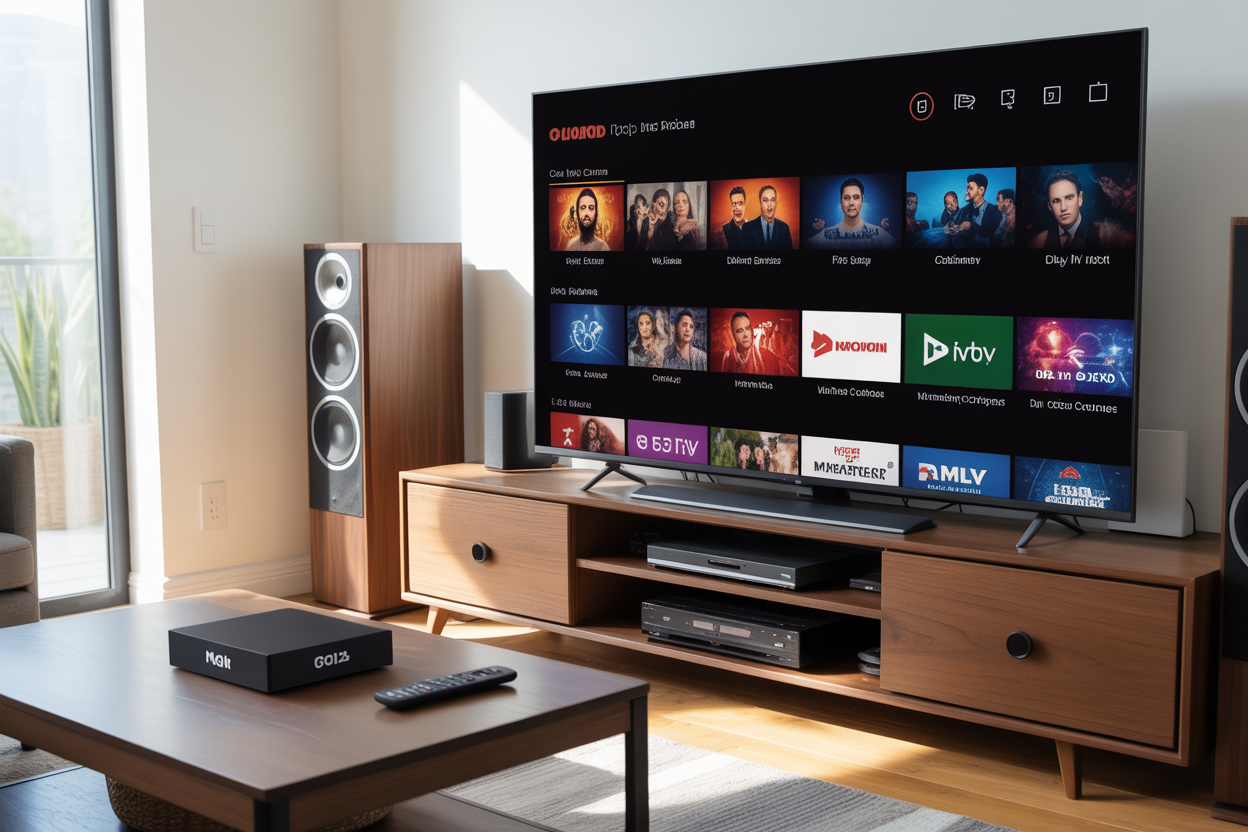
A. What are MAG boxes and their capabilities
MAG boxes are specialized IPTV set-top devices manufactured by Infomir. These sleek little gadgets transform regular TVs into smart entertainment hubs. The beauty of MAG boxes lies in their simplicity and powerful performance when it comes to streaming content.
These devices run on a Linux-based operating system and connect directly to a television via HDMI. Unlike generic Android boxes, MAG devices are purpose-built for IPTV, making them incredibly reliable and stable for streaming live TV channels, movies, and on-demand content.
Most popular models include the MAG 322, MAG 324, and MAG 425A, each offering different specs and capabilities. The newer models boast faster processors, more RAM, and support for higher resolution content including 4K streaming.
What makes these boxes stand out is their dedicated middleware portal system. Users simply input their provider’s portal URL and credentials, and the box handles everything else. No complicated apps to download or settings to configure.
B. Benefits of using Gold IPTV on MAG devices
Gold IPTV paired with a MAG box creates a match made in entertainment heaven. This combination offers a premium viewing experience that rivals traditional cable services at a fraction of the cost.
The interface runs incredibly smooth on MAG devices. Channels load quickly, buffering is minimal, and the EPG (Electronic Program Guide) works flawlessly. This means users can browse through thousands of channels without frustrating delays or crashes.
Gold IPTV’s extensive content library truly shines on MAG boxes. From international sports packages to premium movie channels, everything is organized in an intuitive way that makes finding content a breeze. The picture quality remains consistent thanks to the MAG box’s dedicated hardware.
Another major advantage is the stability. Many IPTV services struggle with reliability, but Gold IPTV on MAG boxes maintains solid connections even during peak viewing hours. The hardware-software integration creates fewer points of failure compared to using apps on multipurpose devices.
For folks who prefer a traditional TV experience with a remote control rather than navigating through smartphone apps, this setup delivers perfectly. The dedicated remote makes channel surfing feel just like cable TV but with vastly more options.
C. Required equipment before installation
Before diving into setting up Gold IPTV on a MAG box, users need to gather a few essential items to ensure a smooth installation process.
First and foremost, a reliable MAG box is needed. While older models like the MAG 254 still work, newer versions such as the MAG 322 or MAG 424 provide better performance and support for HD and 4K content.
A stable internet connection is non-negotiable. The recommended minimum speed is 25 Mbps for HD content, though 50+ Mbps is ideal, especially for households streaming on multiple devices simultaneously. Wired ethernet connections typically provide more stability than WiFi for streaming.
Users will also need:
- HDMI cable to connect the MAG box to the TV
- Power adapter (usually included with the MAG box)
- Ethernet cable (for wired connection)
- Active Gold IPTV subscription with login credentials
- Portal URL provided by Gold IPTV
For the most seamless experience, a good quality router helps prevent buffering issues. Dual-band routers that support 5GHz connections typically perform better for streaming purposes.
Preparing Your MAG Box for Installation
A. Ensuring your MAG box is properly connected
Before diving into Gold IPTV installation, the MAG box needs to be properly hooked up. First things first, locate the HDMI port on the back of the MAG device and connect it to the TV using a standard HDMI cable. This ensures the best possible picture quality for streaming.
Power matters too. The MAG box comes with a power adapter that should be plugged into a working outlet. Once connected, users should see a small light on the front of the device, indicating it’s receiving power.
For remote control functionality, make sure the batteries are fresh and properly inserted. The remote is the primary way to navigate through the MAG interface, so without it, setting up Gold IPTV becomes quite the challenge.
B. Checking internet connectivity
A stable internet connection makes or breaks the IPTV experience. The MAG box offers two connection options:
- Ethernet connection – The most reliable choice for streaming. Simply connect an Ethernet cable from the router directly to the MAG box’s Ethernet port.
- Wi-Fi connection – Available on newer MAG models. To set up Wi-Fi:
- Go to Settings
- Select Network
- Choose Wireless
- Select the home network and enter the password
Testing the connection speed is crucial. The MAG interface includes a speed test in the network settings menu. For smooth HD streaming, at least 10 Mbps download speed is recommended. Anything less might result in buffering issues.
C. Updating your MAG box firmware
Running outdated firmware can cause compatibility issues with Gold IPTV. Updating the firmware is straightforward but essential:
- Navigate to the Settings menu
- Select “System Settings”
- Choose “Software Update”
- Select “Check for Updates”
If an update is available, the MAG box will download and install it automatically. This process might take several minutes, and the box will restart once complete. Never power off the device during an update – this could damage the system.
Some older MAG models might require manual firmware updates through a USB drive. In such cases, downloading the appropriate firmware file from the official Infomir website is necessary.
D. Accessing the portal menu
The portal menu is where the magic happens for Gold IPTV installation. To access it:
- Using the remote, press the “Menu” button
- Navigate to “Settings”
- Select “System Settings”
- Choose “Servers”
- Select “Portal 1” or “Portal Settings”
This area contains the crucial field where the Gold IPTV portal URL will be entered. The screen typically displays fields for:
- Portal name (optional, can be set to “Gold IPTV”)
- Portal URL (the address provided with the Gold IPTV subscription)
- Portal username and password (if required)
The on-screen keyboard can be navigated using the directional buttons on the remote. It’s worth taking extra care when entering the URL as even a single incorrect character will prevent the service from loading properly.
Step-by-Step Gold IPTV Installation Process
A. Navigating to portal settings
Setting up Gold IPTV on a MAG box starts with finding the portal settings. Users need to grab their remote control and hit the “Menu” button. This brings up the main interface where all the magic happens.
From the main menu, they’ll need to look for the “Settings” option. It’s usually represented by a gear or wrench icon – pretty standard stuff. Once in the Settings menu, they should scroll down to find “System Settings.” This is where all the important configuration options hide.
After entering System Settings, the next step is finding “Servers” or “Portal Settings.” Different MAG box models might show slightly different wording, but it’s all the same thing. This is the gateway to connecting with Gold IPTV’s streaming service.
B. Entering the Gold IPTV portal URL
Now comes the crucial part – entering the correct portal URL. The MAG box will show a field labeled something like “Portal URL” or “Server Address.” This is where the Gold IPTV portal address goes.
The exact URL should be provided by the Gold IPTV service upon subscription. It typically looks something like “http://portal.goldiptv.com:port” or a similar format. Getting this right is critical – even a small typo means no connection.
Some MAG boxes have an on-screen keyboard that pops up. Others might require navigating through characters using the remote’s directional buttons. It’s tedious but worth taking time to enter correctly.
After typing the URL, they’ll need to hit “OK” or “Save” to confirm the entry. The box might take a moment to process this information.
C. Authentication methods and login credentials
With the portal URL saved, the system will prompt for login credentials. Gold IPTV typically provides users with:
- Username or MAC address
- Password
Some setups might just require the MAC address of the MAG box itself, which is printed on the device or can be found in the device information settings.
When entering credentials, the same careful attention to detail applies. Passwords are case-sensitive, so capitalization matters. Spaces at the beginning or end can cause authentication failures too.
After entering the login information, hitting “OK” sends the authentication request to Gold IPTV’s servers. The system then validates these credentials against their subscriber database.
D. Troubleshooting connection issues
Connection problems happen. When they do, here are some common fixes:
- Double-check the portal URL for typos
- Verify the username and password are correct
- Ensure the MAG box has a solid internet connection
- Restart the MAG box after changes
- Try a wired Ethernet connection instead of Wi-Fi
Another common issue is server overload. Sometimes too many people are streaming at once. Waiting a few minutes and trying again often solves this.
Network issues on the home setup can also cause problems. A simple router restart might clear things up. If users have changed any DNS settings, returning to default settings might help.
E. Verifying successful installation
Success! When everything’s working, the MAG box will load the Gold IPTV interface. Users should see categories of channels, maybe some VOD options, and possibly a program guide.
The true test is playing a channel. Selecting any channel should start the stream within seconds. If it loads quickly and plays smoothly, the installation is successful.
Users should check several channels across different categories to ensure everything’s working properly. This verifies that not just the connection works, but that their subscription is properly activated for all included content.
A final check involves looking at stream quality. HD channels should display in high definition, and the stream should play without buffering on a decent internet connection.
Configuring Gold IPTV Settings for Optimal Performance
A. Customizing video playback settings
Once Gold IPTV is installed on a MAG box, users need to fine-tune their video playback settings for the best viewing experience. The default settings might work for many, but they’re rarely perfect for everyone’s setup.
To access these settings, viewers need to navigate to the “Settings” menu while watching any channel. From there, they’ll find several options that can dramatically improve their viewing experience:
Resolution Settings:
The MAG box can be adjusted to match the TV’s native resolution. For those with 4K TVs, selecting 2160p will deliver the sharpest image when watching supported content. Most Gold IPTV channels stream in 720p or 1080p, so setting the resolution accordingly prevents unnecessary processing.
Buffer Size:
Buffering issues can ruin the IPTV experience. Increasing the buffer size allows the MAG box to preload more content, reducing those annoying pauses during playback. For homes with slower internet connections, setting a larger buffer (5-10 seconds) works wonders.
Audio Output:
MAG boxes support various audio formats. Users with home theater systems should select the appropriate digital output format (like Dolby Digital) to enjoy surround sound when available on Gold IPTV channels.
B. Setting up EPG (Electronic Program Guide)
The Electronic Program Guide transforms channel surfing from random clicking to purposeful selection. Setting it up correctly on a MAG box makes finding content on Gold IPTV infinitely easier.
Updating EPG Data:
The guide needs regular updates to stay current. Users should navigate to “Settings” > “System Settings” > “EPG” and enable “Auto Update.” Setting this to update daily ensures the program information stays fresh.
Timeshift Settings:
One of the coolest features of the EPG is the ability to see what was on earlier and what’s coming up later. Configuring the timeshift to show 24 hours backward and forward gives a comprehensive view of programming without cluttering the interface.
Channel Thumbnails:
Visual people appreciate seeing channel logos in the guide. These can be enabled in the EPG settings, making navigation much more intuitive than reading text-only listings.
C. Creating favorites and channel groups
With thousands of channels available on Gold IPTV, organization becomes essential. Creating personalized groups and favorites saves tons of time when looking for something to watch.
Adding Favorites:
While watching any channel, pressing the “FAV” button on the remote adds it to a favorites list. This creates a shortcut to the most-watched channels, eliminating the need to remember channel numbers or scroll through endless lists.
Creating Custom Groups:
Beyond favorites, users can create themed channel groups. Sports enthusiasts might create a “Sports” group containing all related channels. To do this:
- Go to “Settings” > “Channels” > “Channel Groups”
- Select “Create New Group” and name it
- Add channels by browsing the full lineup and marking desired channels
Multi-room Organization:
Families with multiple MAG boxes throughout the home can create different groups for different rooms. Kids’ rooms might have age-appropriate channels grouped together, while the living room MAG box might prioritize entertainment and news.
Proper configuration of these settings transforms Gold IPTV from merely functional to perfectly tailored for each viewer’s preferences.
Getting the Most from Your Gold IPTV Subscription
Exploring available channels and content
Gold IPTV on MAG boxes opens up a world of entertainment options. Users get access to thousands of channels from around the globe, covering everything from sports and movies to news and kids’ programming.
The channel guide on MAG boxes makes browsing through content super easy. Subscribers can quickly find what they want by using the category filters or the search function. The interface shows program information and schedules, so nobody misses their favorite shows.
Premium movie channels, sports packages, and international content are all organized in easy-to-navigate menus. The electronic program guide (EPG) displays what’s currently playing and what’s coming up next, making it simple to plan viewing sessions.
Many users don’t realize they can create favorites lists on their MAG box. This feature helps organize the most-watched channels, saving tons of time when switching between preferred content.
Using recording features
The recording capabilities on MAG boxes with Gold IPTV are game-changers. Subscribers can record live TV with just a few button presses on their remote. This means no more missing important matches or season finales due to scheduling conflicts.
Setting up recordings works in multiple ways:
- One-time recordings for single episodes
- Series recordings for entire seasons
- Time-based recordings for specific durations
The box needs an external USB storage device connected to save recordings. A 1TB external hard drive typically stores about 500 hours of standard content or 250 hours of HD content.
Playback controls for recorded content include pause, rewind, and fast-forward functions. This gives viewers complete control over their viewing experience.
Parental control settings
MAG boxes offer robust parental control options for Gold IPTV subscribers with children at home. These controls allow adults to restrict access to age-inappropriate content.
The system uses PIN protection to lock adult channels and mature content. Parents can set up time restrictions too, limiting when certain users can access TV services. Some find this helpful for managing screen time during school nights.
Content filtering options allow blocking entire categories of programming based on ratings or content type. The interface makes it easy to adjust these settings as children grow older.
Regular maintenance tips
Keeping a MAG box running smoothly with Gold IPTV requires some basic maintenance. Regular system updates ensure the box has the latest features and security patches. These updates typically appear automatically, but checking manually each month is a good habit.
Clearing the cache periodically helps prevent buffering issues. This simple maintenance task takes just a minute but makes a huge difference in performance.
Signal quality matters too. Checking that HDMI cables are securely connected and that the internet connection meets minimum speed requirements (at least 25 Mbps for HD content) prevents most streaming problems.
Many subscribers forget to restart their MAG box occasionally. A simple weekly reboot clears temporary files and refreshes the system, preventing many common glitches before they start.
Setting up Gold IPTV on your MAG box doesn’t have to be complicated. By following the steps outlined in this guide—preparing your box, completing the installation process, and optimizing your settings—you’ll be enjoying your favorite content in no time. Remember that proper configuration is key to getting the best streaming quality and experience.
Take full advantage of your Gold IPTV subscription by exploring all available channels and features. If you encounter any issues during setup, refer to the troubleshooting tips we’ve provided or contact Gold IPTV’s customer support. Happy streaming!